Friday, October 1, 2010

MOTHERBOARD

What is a Motherboard?

The motherboard is the main circuit board inside your PC. Every components at some point communicates through the motherboard, either by directly plugging into it or by communicating through one of the motherboards ports. The motherboard is one big communication highway. Its purpose inside your PC is to provide a platform for all the other components and peripherals to talk to each other.
Intel - D865GLCLK - Socket 478 Motherboard with Audio, Video, AGP 8X/4X/1X, USB 2.0, Serial ATA, Hyper-Threading Technology and Gigabit LAN Support

Types of Motherboards

The type of motherboards depends on the CPU it was designed for. You can therefore categories motherboards by which socket type they have. e.g. Socket A, Socket 478 etc. The Type of motherboard you buy is very important, as it will need to house your CPU, and they are not interchangeable. When buying a motherboard, it will always tell you what socket type it has.


When Buying a Motherboard

As everything you have on the PC at some point needs the motherboard, you need to consider these components when buying a motherboard. Foe example, if you have a lot of devices with a PCI interface that you wish to use, there is little point buying a motherboard that only offers you 3 PCI slots. Like wise with memory, you have to make sure that there are enough slots for the amount of memory you have or wish to have.
The motherboard also needs the correct type of interface for your Memory, Graphics card, Hard disks and other items as well. You will find that most motherboards offer everything you need however it needs checking on when buying. Its especially important to pay detail to your motherboard if you want to use older components, which a new motherboard may or may not support.
The major difference between motherboards that support the same CPU is the model of the chipset (more on the chipset later). Different chipsets offer different performance and different features in terms of memory support, AGP port speed, Multiplier numbers, Bus speeds and much more.
Intel - D865GLCLK - Socket 478 Motherboard with Audio, Video, AGP 8X/4X/1X, USB 2.0, Serial ATA, Hyper-Threading Technology and Gigabit LAN Support

Speed of a Motherboard

Motherboards have got to be one of the hardest components to measure the speed of. Performance can really only be measured by benchmarking using the same components in several motherboards of the same type. You often find that motherboards with the same chipset have roughly the same performance in real world tests. The minor differences that do occur are down to the quality of the materials used and the quality of the manufacturing.
The Motherboards speeds that are quoted on the box are maximum supported speeds for other components. For example motherboards will quote the maximum FSB (Front Side Bus) speed. However without a CPU that also supports this speed, it will never be reached. Likewise when it quotes the maximum memory speed. The memory of this speed has to be present.

What is a Motherboard Chipset?

A motherboard chipset controls all the data that flows through the data channels (buses) of the motherboard. The primary function of the motherboard chipset is to direct this data to the correct area's of the motherboard, and therefore the correct components.

Components of a Motherboard

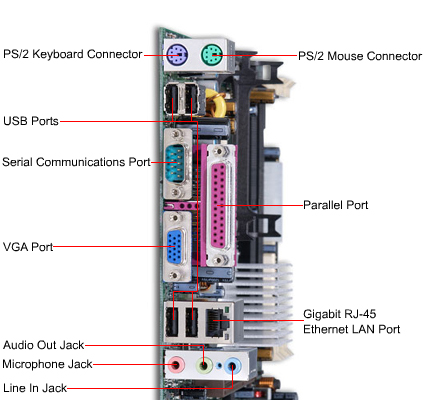
The motherboard contains many connections for all type of components. Motherboards contain expansion slots such as the ISA, PCI, AGP and DIMM sockets. It also contains external connections for your onboard sound card, USB ports, Serial and Parallel ports, PS/2 ports for your keyboard and mouse as well as network and Firewire connections.
So the motherboard has a massive part to play in the workings of your PC. Components that you buy all rely on the motherboard to have the correct connections are available and working. Its best to buy a decent motherboard especially if you plan on buying extra's in the future.

by : http://www.techiwarehouse.com/cat/13/Motherboard

Saturday, September 18, 2010

~RAM~

RAM is an abbreviation for Random Access Memory. It usually refers to "temporary" memory, which is when the system is shut down, the memory is lost. This is why the memory is referred to as being "random", as any piece of information can be circulated through the memory regardless of its location and its relation to any other information within the RAM. The first of the many RAMs to come in the market was created in 1951 and was used until the late 1960s and early 1970s.

Types of RAMs

The most widely used RAMs today are SRAMs (static RAMs), which stores data in a state of a flip-flop, or DRAMs (dynamic RAMs), Flash, and EPROM, which stores data as a charge in a capacitor. Another well known type of RAM, a  ROM, is a type of a RAM that has permanently enabled/disabled selected transistors by using a metal mask. ROMs thus cannot store any further charges.
Flash memory is also widely used. Because SRAMs and DRAMs are known to be highly volatile, many new products adopt the flash memory technology. Some examples of devices using flash memory include portable music players, scientific calculators, mobile phones, and even certain types of personal computers such as the One Laptop per Child (OLPC) devices. Flash memory is divided into two types: the NOR type and the NAND type. The NOR type is the one able to conduct a random access, therefore being widely used as a ROM in today's market. NAND memory does not support random access, but is still quite useful in applications like flash USB drives.
RAM
In today's computers, RAMs are shipped in a form of module known as DRAM modules or memory modules. It is about the size of a chewing gum and with the Plug n Play technology, these can easily be replaced by taking it out of the port and replacing it with a new one. Not to forget, there is also an extremely small amount of RAM (known as SRAMs) within CPUs, motherboards, hard drives, and other parts of the system.

RAM Swapping

Sometimes people will need more memory than what the RAM installed can offer during intensive application cycles. During these sessions, the computer will conduct a task known as swapping. This is when the computer temporarily uses the  hard drive space in place of the memory. Thrashing is the term for constantly swapping, but as the name's connotation suggest, constant thrashing can decrease the overall system performance. More RAM being added can reduce the swapping rate.

Security Concerns

SDRAMs are known to not fully shut off when the power is cut. Instead, the stored memory is faded away. While this fading away only takes seconds in a normal room temperature, which is not the case in lower temperatures, which then the fading away can take up to minutes. Therefore, encrypted information could potentially be leaked as it is still stored in the memory.


 Recent Development

Currently non-volatile RAMs are under development, which will mean that memory can still be stored when the power is shut off. The more advanced step yet to have been taken was in 2004 when Nantero developed a fully functioning carbon nanotube memory type holding 10 GB. Recently in 2006, "Solid State Drives" with sizes of 150 GB and a faster speed than the normal hard drives have been created.


by: http://www.tech-faq.com/ram.html

How Computer Viruses Work

Almost every computer user in the world has heard of computer viruses. Many even have had the misfortune of experiencing a virus attack at some point in their usage.

Virus attacks are becoming more prevalent than ever before. Yearly thousands of people suffer often-irrecoverable damage to their systems and data. Yet many do not even know what hit them let alone what they can do to avoid a recurrence. It’s time to fight back.

When it comes to virus attacks, ignorance is certainly not bliss. Indeed the best possible weapon against preventing a virus attack is knowledge. We need to know how virus enters into our computer system, how they infect our system and how they eventually spread and cause more damage.

Before elaborating on the modus operandi of the virus, it’s better that we learn a little bit more about it. For starters, exactly what is a virus? A computer virus is most often defined as “a malicious code of computer programming”. What this means is that a computer virus is just another software – only written with not so very noble intentions. A computer virus is designed to install, propagate and cause damage to computer files and data without the knowledge and/or express permission of the user. A computer virus can only survive, attack and propagate in computer memory. Computer memory is usually the RAM (and all different variations of it) and disk storage (hard, floppy and everything in between). Besides this you will not find computer viruses in your monitor, keyboard and certainly not in your own blood stream!

The first step in any virus attack is always the invasion. This is when the virus actually enters the computer system from an outside source. Much of the effort in preventing a virus attack lies in understanding what these virus entry points are and how best to monitor and block out any possible intrusion. All viruses enter the computer system through two main entry points: the disk drives and the network adapter cards. The disk drives may be any sort of disk drive (hard, floppy, CD, Zip, Jazz and what have you). This makes any disks or CDs that you insert into these drives a possible source of virus infection. The network adapter card is most likely your computer network and/or modem card connected to the local Intranet and/or the Internet. Virus enters through the network card most likely disguised in the form of attachments in e-mails. These attachments are often program files and office documents containing macros. Besides this, certain webpages that we visit on the Internet may also contain harmful programming codes that might transfer virus or virus-like codes into our system. To guard our systems against virus intrusion from these sources, many good anti-virus programs allows users to completely scan all files read form disk drives or downloaded from the Intranet/Internet.


How do virus infections occur? The act of infection often begins with a harmless looking action such as opening a file (like a video game or a Word document) that one often gets in e-mail attachments or while accessing any disk in a disk drive. These actions inadvertently activate the virus lurking in these files and disks. The virus then installs itself into the computer’s memory.

This is where things get nasty. After entering the computer memory, a virus often immediately sets out to multiply and spread duplicate copies of itself across the main data storage device (most often the hard disk drive). It does this by copying itself into as many files it can find on the disk drive. Later when users transfers or copies these files to their friends and colleagues, the virus gain entry into ever increasing number of systems. If the virus has found its way to this level of the user’s computer, the user runs a high risk of permanent damage to data and hardware. But such a level of infection only happens to two types of users. The first are those who do not employ any kind of anti-virus measures (or if they do, it obviously isn’t doing a good job). The second are those who do have good anti-virus programs installed and running but did not bother updating their software with the latest virus data files. As a result newer viruses can actually use the anti-virus programs to infect an even greater number of files. So we can see here that having good anti-virus software isn’t enough. One must constantly keep it updated (preferably on a monthly basis).

If a virus were to just spread itself, users might not have much to worry about. But the worst is yet to come. Many viruses contain what is called a payload. This is the destructive sequence that is activated on a certain trigger. The trigger may be the arrival of a particular date or an action done by the user. The effect of the payload can be anything as benign as some harmless message appearing on screen to as frightening as the destruction of the disk drive’s boot record – making it completely unusable and in most cases completely irreparable. Indeed it is the later that causes permanent lost of data and hardware and which is responsible for the virus’ notorious reputation. If a virus is capable of unleashing its payload on the user’s system, this indicates a serious breach of security on part of the user. It’s time for the user to learn from the experience and never let computer virus have a second chance.

What has been attempted here is to give the reader a quick run down of how a virus attacks our systems. It is not meant to be exhaustive as the subject matter is very broad. In short the best cure for a virus attack is a good prevention plan coupled with knowledge, caution and good anti-virus software!

What is Computer Virus?

A computer virus is an executable program. Depend on the nature of a virus, it may cause damage of your hard disk contents, and/or interfere normal operation of your computer.
By definition, a virus program is able to replicate itself. This means that the virus multiplies on a computer by making copies of itself. This replication is intentional; it is part of the virus program. In most cases, if a file that contains virus is executed or copied onto another computer, then that computer will also be "infected" by the same virus.
A virus can be introduced to a computer system along with any software program. For Internet users, this threat can come from downloading files through FTP (file transfer protocol), or referencing email attachments. (Please refer to our web page on Handling Email's File Attachments for details.)
When a virus is introduced to a computer system, it can attach itself to, or sometimes even replace, an existing program. Thus, when the user runs the program in question, the virus is also executed. This usually happens without the user being aware of it.
A virus program contains instructions to initiate some sort of "event" that affects the infected computer. Each virus has an unique event associated with it. These events and their effects can range from harmless to devastating. For examples:
  • An annoying message appearing on the computer screen.
  • Reduced memory or disk space.
  • Modification of data.
  • Files overwritten or damaged.
  • Hard drive erased.

Types of Viruses

  • File virus : Most viruses fall into this category. A virus attaches itself to a file, usually a program file.
  • Boot sector virus : These viruses infect floppy and hard drives. The virus program will load first, before the operating system.
  • Macro Virus : This is a new type of virus that use an application's own macro programming feature to distribute themselves. Unlike other viruses, macro viruses do not infect programs; they infect documents.
  • Virus Hoax : Although there are thousands of viruses discovered each year, there are still some that only exist in the imaginations of the public and the press - known as virus hoaxes. These viruses hoaxes DO NOT EXIST, despite rumor of their creation and distribution.

Do not pass on Virus Hoaxes

Although there are thousands of viruses discovered each year, there are still some that only exist in the imaginations of the public and the press - known as virus hoaxes. These viruses hoaxes DO NOT EXIST, despite rumor of their creation and distribution.
Please ignore any messages regarding these supposed "viruses" and DO NOT pass on any messages about them. Send them to ITSC to be dealt with. Passing on messages about these hoaxes only serves to further propagate them.

Trojan Horse is Not Virus!

Strickly speaking, a trojan horse is NOT a virus because it does not replicate like ordinary viruses do. A trojan horse is an unfriendly program which will appear to be something other than what it is, for example a program that is disguised as a legitimate software program.

Below are some common trojans:
  • Back Orifice 2000 : BO2K allows outsiders to access and modify any information on a Windows 95, 98 and NT machines through an invisible server program installed by the program. It also allows outsiders to spy on what user is doing. BO2K is expected to be released on 10/7/1999. Users are advised not to run executables from un-secured source and updates their antivirus tools periodically.
  • Details can be found at http://ntbugtraq.ntadvice.com/bo2000.asp
  • Back Orifice: This trojan horse allows an intruder to monitor and tamper with Windows 95 and Windows 98 computers over the Internet. There is no easy way for a computer user to know the attack is taking place, and there is no easy way to stop the attack once Back Orifice has installed itself on the computer. The ver 1.2 of Back Orifice cannot be installed on Windows NT system.
  • NetBus: NetBus is a remote administration tool, much like the infamous Back Orifice tool. However, Netbus predates Back Orifice by several months and is also capable of working under Windows NT in addition to Windows 95 and 98.
by : http://www.ust.hk/itsc/antivirus/general/whatis.html


Friday, September 17, 2010

3 Ways to Diagnose and Fix Registry Errors

The diagnosing and fixing registry errors start with identifying the signs of registry failure. Some of the signs are:
·        Computer crashing
·        Low processing speed
·        Discoloration of the screen from white to blue
·        Computer freezing
·        Corrupting of file
Having identified the cause of these mentioned above, which is registry failure it is own your own interest to fix the errors. The three ways to fix the errors while taken cognizance of the advantage and disadvantage of each are:
1.     manually diagnosing and fixing registry  error
2.     Hire a professional to diagnose and fix
3.     Downloading the diagnose tool and fixing software

Manually diagnosing and fixing registry error
This option entails that you must be technically sound in computer hardware and software maintenance. You must back up your information in case of something go wrong.
The advantage of this option is that you spend little or nothing to fix the errors while the disadvantage is that it is time consuming and the chances of messing things up, which will cost you much money than it is supposed to be.

Hire a professional to diagnose and fix
This option means that you will employ the services of an expert or company to handle the problem. The issue of trial and error is eliminated in using this method.
The advantage of using this method is that it saves time and guarantees you of good a job while the disadvantage is that it is very expensive to hire one.

Downloading the diagnose tool and fixing software
This method entails that you will download the diagnosing and fixing software from the internet.  Experts or companies have developed the software, and allow you to test the efficiency of it over a period before buying the full version.
The advantage of this method is that it is instantaneous and time-saving; you need not to give anybody your computer system to handle. Therefore, it is cost effective and time-saving.
The disadvantage is that some of the software is developed with worms, malware and spyware, which retrieve your useful information such as your credit card number and bank account back to the developers of such software.
In summary, the third method has proved to be the best if properly done under the instruction of an existing user, which this article must have accomplished.


Click http://www.registrycleanertrial.biz for a free scan and fixing of your window registry errors before your PC crashes.